|
Products & Services |
|

Please note that your account configuration may not allow all the features described in the Help Centre.

You may enter any of the following information in the Search field:
- One or more words related to the product (name, description, feature, etc.)
- The manufacturer's name.
- The vendor prefix (3 letters in front of the product code).
- The Staples Business Professional product code, complete or partial.
- The manufacturer's product code, complete or partial.
- The Staples retail store code (complete code only, no wildcard characters).
- Your own custom product code, if your account is set-up to use these codes in eway (complete code only, no wildcard characters).
- You may use the asterisk as a wildcard character to complete a partial product code (except your own). It replaces 1 character or a string of consecutive characters.
Whether you got your results list from a product search or by selecting a category in the Products browse menu, if there are other available sub-categories or attributes, they appear in the left panel. Click on faceted classification to open the available filters and include only the items that have the selected attribute. The list is immediately updated.
If a product is eligible for next day delivery, the Get it Fast faceted classification displays at the left of the search results.
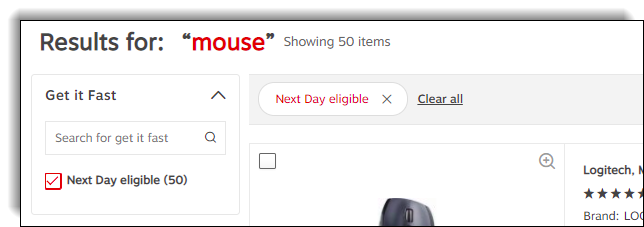
Expand the Get It Fast faceted classification and check the Next-Day eligible box to show only products eligible for next day delivery in the search results.
Select a faceted classification to narrow down your search results.
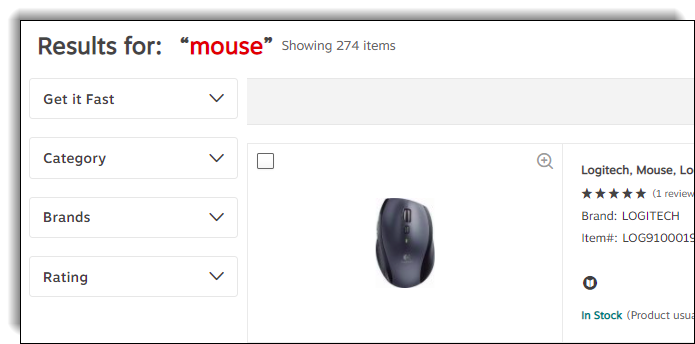
Two types of viewing modes are available when searching for products.
- In List view, each product appears on 1 line.
- In Grid view each product appears in a box and there are 3 boxes on 1 line.
There are a few more product details in the List view, notably the product's availability.
The list is sorted according to various criteria designed to give you the most practical results possible. These criteria include relevance and availability. You can sort the list according to your own criteria.
There are several to choose from in the Sort By drop-down list.
- By price (low-high, high-low)
- By product description (A-Z, Z-A)
- By product number (A-Z, Z-A)
- By manufacturer (A-Z, Z-A)
There are 3 options in the Filter By drop-down list.
- All Products - no filter is applied.
- Best Match - shows items on your contract and from the catalogue that correspond to the search.
Your account configuration may not allow pricing to be displayed, as requested by your organization.
If you are not logged in to eway, click on the Sign In menu at the top of the screen. Once you are connected, your search results will show prices and availability.
In the search results list, click in the check boxes of the items you want to compare and click on the Compare Selected link at the top of the list.
The Compare page shows all the product features side by side. From this page, you can add the chosen item to your shopping cart or your shopping list.
The product may be on an exclusion list for your customer account. Or it may simply be that a faceted classification has been applied to the results list.
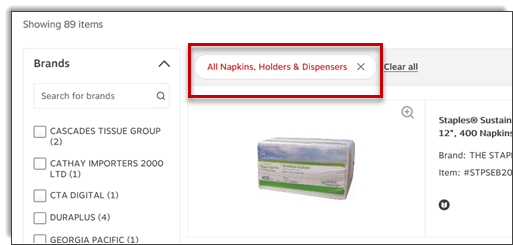
Otherwise, it could be that the product you are looking for is discontinued. Do not hesitate to contact an Expert in the Customer Care for assistance.
Non-Stock products don't come up in the search results. By entering the item directly in your cart, it may be added to the order otherwise a message will explain why this item is not available.
Product codes can be seen in various locations on eway.ca.
-
After performing a search by category or in the search bar, products codes always display below the vendor's name.

-
If you select a product in the results list, the Product Details page displays and the product code is shown below the product's description.
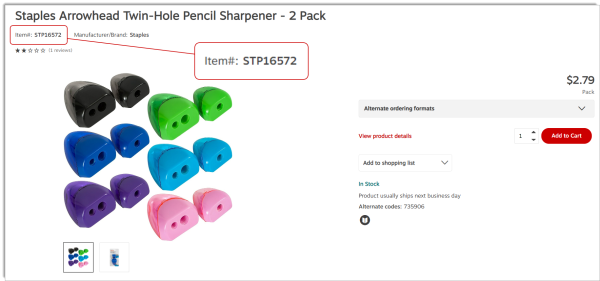
The manufacturer's information can be seen in various locations on eway.ca.
-
After performing a search by category or in the search bar, the name of the manufacturer always display below the product's description.

-
If you select a product in the results list, the Product's Detail page displays and the manufacturer's name is shown below the product's description, at the right of the product code.
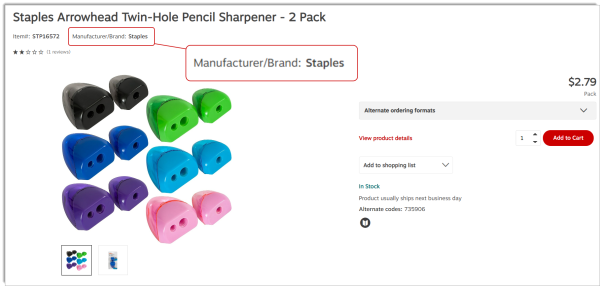
-
Below the product's image, the manufacturer's warranty detail, as well as their coordinates may display below the Warranty option.
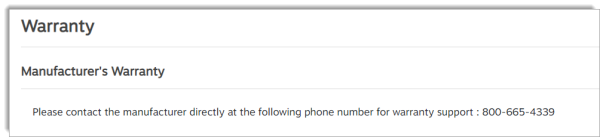
Here is the list of all possible units of measure (UOM) on eway.ca:
- BG - Bag
- BK - Bulk
- BT - Bottle
- BX - Box
- CT - Carton
- CD - Card
- DZ - Dozen
- EA - Each
- PD - Pad
- KT - Kit
- GR - Gross
- PR - Pair
- PK - Pack
- RL - Roll
- RM - Ream
- ST - Set
- TB - Tube
- SK - Skid
To view a product's alternate ordering format when available:
-
Click on a product's description to open the Product Details page.

- Click on the arrow to view the product's alternate formats.
The Buy more and save more section details the tiered prices for the selected product. You can save on the price per unit or per pack by ordering a larger quantity.

Items that can be purchased in larger quantities to save on eway can be identified by the red Buy Bulk button in your product searches and in our products recommendations.
The message "Not the size you're looking for? Use our box finder" may appear in the View product details section, if the queried product is a shipping box. Click on the red Box finder link to reach our Shipping Box Finderand view our full line of shipping products.

To view the origin, availability and shipping lead time for a product:
-
After performing a search by category or in the search bar, the product's origin, availability and shipping lead time display below the product's features icons.
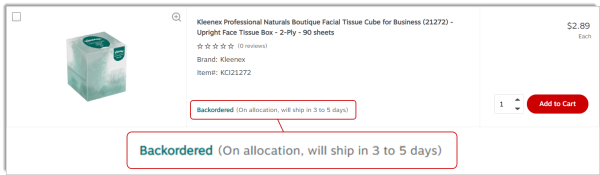
-
If you select a product in the results list, the Product's Detail page displays and the product's origin, availability and shipping lead time display below the Add to shipping list drop-down list.

The product description is automatically displayed in the section below the product images.

Certain qualifying products may offer you even more product content directly below the Description.
-
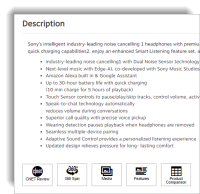
Icons may appear and allow you to learn even more about the products, such as:
-
An additional image gallery;
-
CNET customer reviews or reviews from the product manufacturer's site;
-
A 360-degree image of the product;
-
Additional video presentations;
-
Additional features;
-
Product comparisons;
-
And more...
-
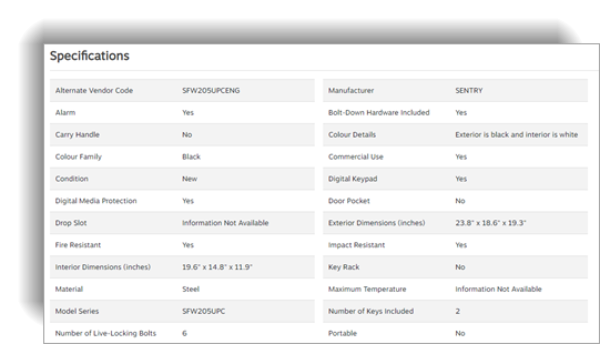
To view a product's specification:
- Search for a product.
- Click on the product's description.
-
Below the product's images, click on Specifications.
We welcome customer feedback about our products! Open the Product Details page for the item you wish to review. Click on the Reviews link below the product details. Use the overall rating to give the product 1 to 5 star. Then enter your review in the box. Give a name to your review in the Review title field. Click on Submit to complete your review.

These items can be seen at the bottom of the Product Details screen. These items are similar or complementary to the queried product and are part of product recommendations suggested on eway.
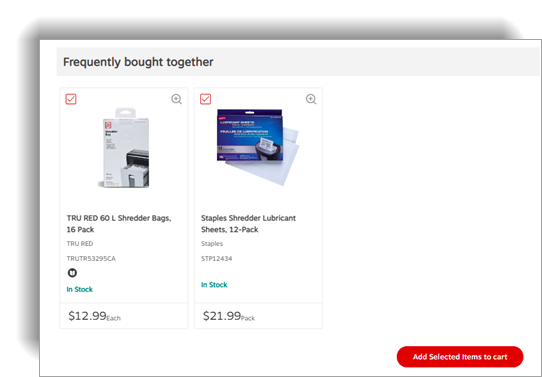
To improve you shopping experience, several types of product recommendations are suggested on eway.
- Our experts suggest - found in the Home page, these recommendations are based on your purchase history.
- On sale this week - in the Home page, these are selected specials based on your purchase history.
- Recently viewed items - seen at the bottom of many pages, these are products that you have queried using the Product Details page. The system remembers up to 6 items, for up to 30 days.
- Customers who viewed items you recently viewed ultimately bought - shown next to the Recently viewed items, these recommendations are based on the items you recently viewed.
-
Related items - seen in the Product Details screen, these items are similar or complementary to the queried product.
- Top selling items - if you have no Recently viewed items, this section replaces the Customers ultimately bought recommendations.
- You may also like - seen in multiple screens, these recommendations are based on what other customers that queried this same item also viewed.
- Others also bought - in the Shopping Cart, this section offers you products that are complementary to the items already in your cart and that other customer who ordered the same products have also bought.
- People who bought items in your cart also bought - same as Others also bought.
- Recommended for you - presented in the Shopping Cart page when there are no items in the cart, these suggestions are based on your purchase history.
- Fifty Green - this pre-checkout screen features product recommendations to increase your order total over the $50 recommended minimum.
- Accessories - shown in the Product Details and the Shopping Cart, accessories are items that complement the product being queried or ordered. There are Required accessories that are not included with the product but are needed in order to use the product, and Suggested accessories that enhance the product but are not required.
Look for the Bulk Buy button in our various recommendations to order larger quantities and save!
From the Product Details page, certain products have several images, a video presentation or a 360° view. Click on the View Demo button to access the content.
When you inquire a product's details, be sure to take advantage of our promotional items.
- These products can be identified by this icon
 in the Product Details page.
When you query a product's details, you may notice this icon  for some items.
- Your account's configuration established by your organization prevents you from ordering these products.
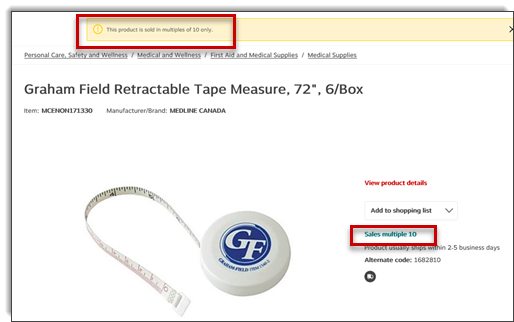
Some items cannot be order for certain quantities; For example, in multiple of 20 only. From the Product Details page, a message may display at the top of the screen, as well as in the product's description.
When you inquire a product's details, you may notice the mentions Available from a trusted Staples Partner or Backordered from a trusted Staples Partner.
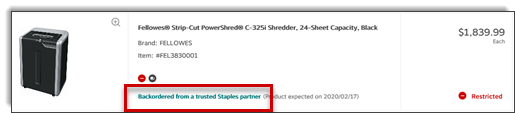
- These Market Place items are available for purchase on our site, however they are sold and delivered by third party trusted partners that we've selected.
A special delivery item is a product that may require extra handling before or at the time of delivery. Additional information is also needed to prepare the delivery. These items are usually part of the Furniture category and are identified by the blue truck icon  .
What it means for you is a just few extra questions when you are ready to check out.
Depending on the service options you choose, extra charges may be added to your order total.
Click on a category to view the list of products included in that category.
The sub-categories appear in a fold-out panel at the right when the cursor hovers over the category name. Click on a sub-category to display its products.
If this menu appears for your user, click Creative Arts & Education to reach the page that shows all related subcategories.
Click on the different sub-categories to see the list of corresponding products.
The Services & solutions menu enables you to order discounted services or various (customizable) items directly from the manufacturer through the eway site. The order is prepared and sent from the manufacturer directly to the specified delivery address, reducing shipping delays. Your order will still be billed by us, according to your account set-up.
Some custom products can be ordered directly from the manufacturer through the eway site. The order is prepared and sent from the manufacturer directly to the specified delivery address, reducing shipping delays. Your order will still be billed by us, according to your account set-up.
- You'll need to accept a user agreement before accessing this external site. This agreement is recorded in your buyer profile and only needs to be done once.
- You then confirm your Shipping and Billing information.
- The ordering web site opens in a new window.
- Follow instructions on the site to enter your order.
- You'll receive a confirmation by email from the manufacturer. Staples Business Professional receives an order report so it can be entered in your account.
- The product is shipped directly from the manufacturer.
- Staples Business Professional will bill your account in accordance with its configuration.
Click on a featured brand to see the product offer.
Using the Brands menu, click on the Shop all brands option to start a product search and see all of the products that are available for you to purchase.
- To download the presented offer, click on the Download rebates offer button.
- If a rebate has been created with the qualifying products option, the Shop qualifying products button will appear and redirect you to a page, which will allow you to browse qualifying products.
- Select this option to see a list of all items currently on clearance. Add the products of your choice directly to your cart using the Add to Cart button or by selecting the checkbox to the left of the image of multiple items and click the Add Selections button.
We sometimes send out email invitations to view new online promotions. The email contains a link to a connection page. Enter your User ID and Password to access a list of promotional products.
Surprise items could also be added automatically to your cart with a price of $0. No worries, it means your order qualifies for a promotional giveaway. Enjoy!
Select one of our sourcebooks to consult.
-
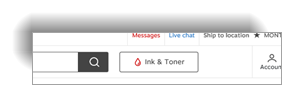
At the very top of the screen, click on the Find ink or toner here button.
-
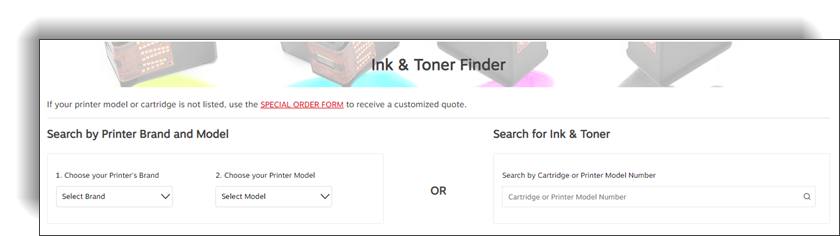
Follow on-screen instructions to enter or select your printer's brand and model and we'll give you a list of consumables.
When performing a Shipping box search in the main search bar, the Shipping Box Finder appears in the header of the search page.
You can also reach the Shipping Box Finder by clicking on the Products category menu, select category Warehouse & Facilities and then click on Box Finder below the Pack & Ship sub category.
-
Enter the length, width and height of the box you are looking for and click the Find Boxes button.
-
Use the All Products drop-down filters and faceted classifications to further narrow your search results.
-
You can click the Reset button to perform a new search and empty all fields.
-
Three display options are available on the right of the screen:
-
Grid view
-
List view
-
Table view
-
-
The results in the table can be sorted in ascending order of each column. Click on a column to change the order of the results.
-
The list contains 24 results per page. Use the navigation options at the bottom of the page to view other pages.
-
Click on the red product code to see a quick view of the product.
-
Click the Add to Cart button when you have found the item of your choice.
To order a product that you cannot readily find or access in eway's online products assortment. Fill out the Special Orders Form to send your special order request to our Customer Care team who will get back to you with the details.
You can place an order for a product that you cannot readily find or access in eway's online products assortment. Submitting this form sends your special order request to our Customer Care team who will get back to you with the details.
Click on the Account menu, hover the Orders tab and select option Special Orders.
Simply click on + to enter multiple items in the same form.
Some fields in the form are mandatory, make sure they contain information before submitting the order.
From the Help menu, click on Recall Information to view the list of current products that are subject to a recall in Canada and have been sold on eway.
Click on the recall's red header to know the steps to take if you own such a product.
If Special Delivery items are part of your order, the assembly option is offered to you.
During the checkout process, you will reach the Delivery Details page, where you will be invited to choose a service option:
-
If you select Delivery, you can choose to have these items installed. This means unwrapping, assembling and positioning the items in the desired location.
-
If you select Pick-up or Delivery without Installation, you can still take advantage of our pre-assembly service on eligible products. For a small fee, this service could save you a lot of valuable time.
-
These added fees will be clearly identified in your cart when you checkout by this Assembly Fee
 icon.
During the checkout process, the Delivery Details screens appears for every order, but its content may vary depending on the items in your cart.
- If there's a Special Delivery item in your cart, you'll have to select your Special Delivery options.
- Your account's Delivery Address appears by default. Make changes as needed.
- You can try choosing an alternate preset shipping address by returning to the shopping cart and selecting a new Ship-To account.
- Check the appropriate delivery option.
- Standard Delivery - delivered the next business day in major markets within Canada.
- Scheduled Delivery - delivered at a future date of your choosing. Select the required date in the calendar.
- Same Day Delivery - for eligible items. Additional charges may apply.
- A section named Delivery Date or Multiple Deliveries Required or Pickup Information contains a message about the delivery or pick-up process, depending on the products in the order and the selected special delivery options.
If Special Delivery items are part of your order, the installation option is offered to you.
During the checkout process, you will reach the Delivery Details page, where you will be invited to choose a service option:
-
If you select Delivery, you can choose to have these items installed. This means unwrapping, assembling and positioning the items in the desired location.
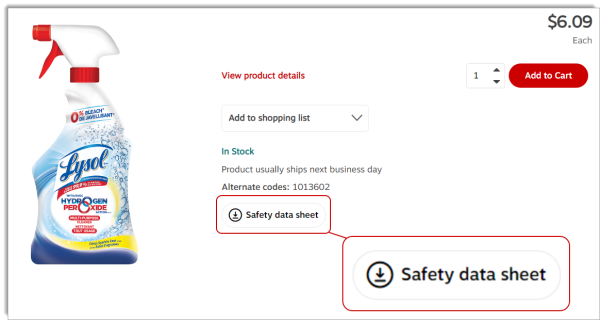
Follow the next steps to obtain the safety data sheet for an in-stock product.
- For in-stock items, use the product search to find the product and access its Product Details page.
-
Click on the SDS button to download the document in PDF format.
- You can also call Customer Care at 1-877-272-2121 and ask for a copy of the SDS.
Hover your cursor over an icon to see a very brief description of its meaning. Click on any icon to see a list of all icons and their full descriptions.

To improve you shopping experience, several types of product recommendations are suggested on eway.
- Our experts suggest - found in the Home page, these recommendations are based on your purchase history.
- On sale this week - in the Home page, these are selected specials based on your purchase history.
- Recently viewed items - seen at the bottom of many pages, these are products that you have queried using the Product Details page. The system remembers up to 6 items, for up to 30 days.
- Customers who viewed items you recently viewed ultimately bought - shown next to the Recently viewed items, these recommendations are based on the items you recently viewed.
-
Related items - seen in the Product Details screen, these items are similar or complementary to the queried product.
- Top selling items - if you have no Recently viewed items, this section replaces the Customers ultimately bought recommendations.
- You may also like - seen in multiple screens, these recommendations are based on what other customers that queried this same item also viewed.
- Others also bought - in the Shopping Cart, this section offers you products that are complementary to the items already in your cart and that other customer who ordered the same products have also bought.
- People who bought items in your cart also bought - same as Others also bought.
- Recommended for you - presented in the Shopping Cart page when there are no items in the cart, these suggestions are based on your purchase history.
- Fifty Green - this pre-checkout screen features product recommendations to increase your order total over the $50 recommended minimum.
- Accessories - shown in the Product Details and the Shopping Cart, accessories are items that complement the product being queried or ordered. There are Required accessories that are not included with the product but are needed in order to use the product, and Suggested accessories that enhance the product but are not required.
Look for the Bulk Buy button in our various recommendations to order larger quantities and save!
You can contact us to obtain a manufacturer's telephone number.

Last Update : January 25, 2024
© Staples Canada ULC | All rights reserved.